
Settings
Find a setting in HQ
Use Venue, Planning, Sending, Brand and Connections to find the correct shared control.
Choose the venue first
In HQ, select the venue and open Venue settings. Read the venue name in the breadcrumb before changing a shared setting. The five tabs organise the page; switching tabs does not itself save changes.
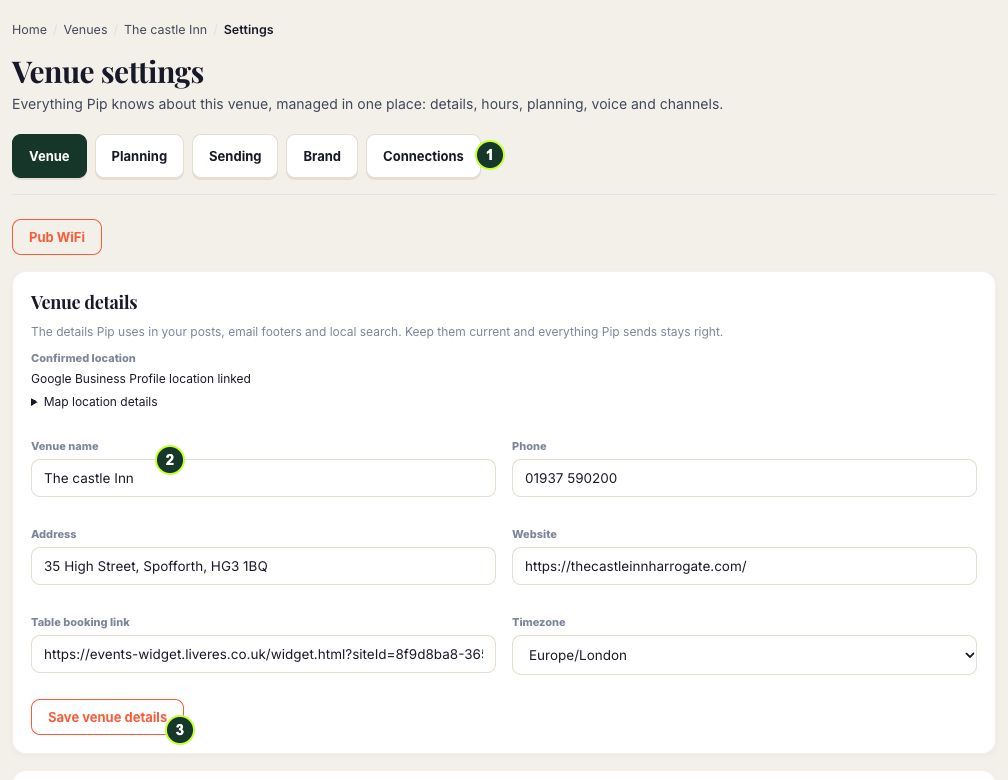
In the picture, marker 1 identifies the settings tabs, marker 2 highlights the venue details, and marker 3 shows the Save button for that card.
Venue
Use Venue for the name, address, phone, website, booking link, timezone, character and sport. Opening hours are separate from exceptional dates. Quiet-day capture ideas choose useful moments for contributors when there is no requested work. Pub WiFi is also reached from this tab.
Planning
Use Planning for capacity, catchment, who may write the plan, daily task time, posting rhythm, the quality bar and channel targets. A planning target describes how much Pip plans. It is different from the limits that decide whether a real message may be sent. Save the relevant card after making changes.
Sending
Use Sending for the maximum messages to one person, minimum time between messages, quiet hours and SMS sender name. Read the explanations beside the fields. Email and SMS share message-history checks. A blank setting may use a fallback; it is not an unlimited allowance. An SMS sender name is separate from the content of an SMS.
Brand
Brand links to the logo and colours, brand voice, photos and menus, and brand mentions. It also shows whether head-office approval is configured. Read the current status rather than assuming an approval toggle is available. Brand mentions help Pip match public activity; they do not connect a publishing account.
Connections
Connections shows integration status and links to the connection management page. Check the specific channel and account before reconnecting it. A public social handle, a watched local venue and a connected publishing account serve different purposes.
Save and check
Use the Save button for the card you edited. Read its result before leaving. Where a control is read-only or your role cannot change it, ask the person who manages that setting instead of creating a duplicate account or connection.