
Settings
Manage your venue details
Keep the address, website, character and menu accurate for your team and Pip.
Open the venue settings
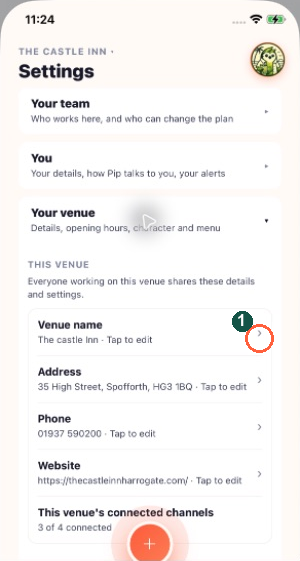
Tap Settings, then Your venue. These details are shared by everyone working at this venue.
The marker highlights Venue name in Your venue. Confirm the selected venue before editing its shared details.
Check the details
Tap a venue detail to open the editing flow available to your role. Check the name, address, contact information and website before saving. If Location not confirmed appears, use Check address.
Describe the venue
Review Venue character and sport so Pip understands the kind of place you run and the teams or events that matter locally.
Keep hours and menus current
Use Manage key dates and opening hours for exceptional dates. Open This venue's menu to manage the food information Pip uses.
Know who owns each setting
Your venue contains shared venue information. You contains your personal choices. Set by head office shows read-only brand, approval and spending controls managed in HQ.