
Social posts
Create a social post from HQ
Write a post yourself or ask Pip to write it, choose the channels and add photos from the Library.
Two ways to start
Select Social under Create in the venue menu. You can start a post in one of two ways:
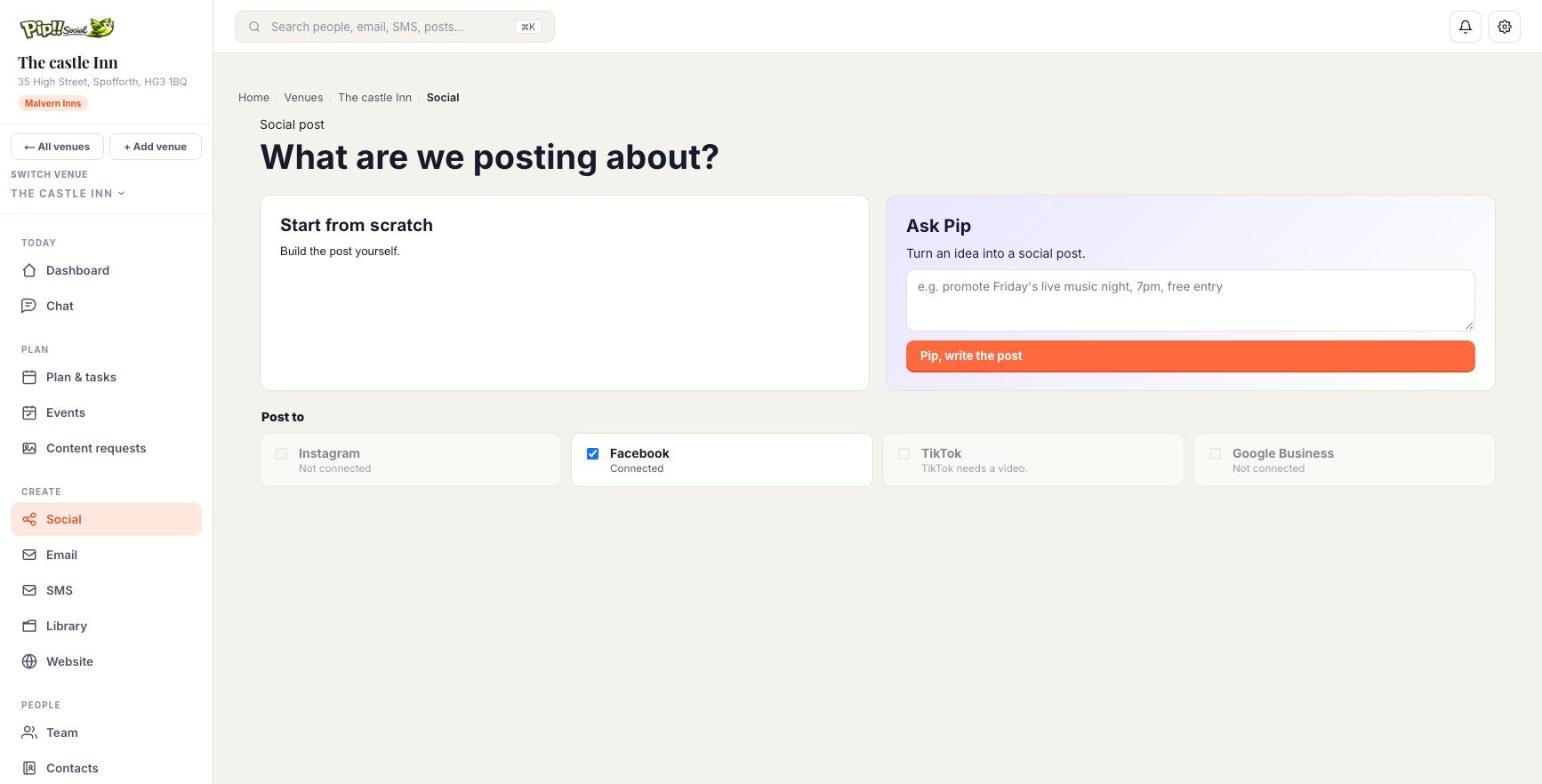
Start from scratch: build the post yourself.
Ask Pip: type your idea, for example promote Friday's live music night, 7pm, free entry, then select Pip, write the post.
Choosing where it goes
Under Post to, tick each channel you want: Instagram, Facebook, TikTok or Google Business. A channel that is not connected is greyed out; connect it first in Connections. TikTok only takes video.
Building the post
The numbers at the top right show which of the five steps you are on. On the first step:
Tick Use the same caption and hashtags for all selected channels to write once for every channel, or untick it to write each one separately.
Write your Shared caption and add Hashtags.
Choose up to 10 photos from your Library on the right. Use Search Library to find one. Google Business uses one photo.
When you are happy, select Check with Pip. Pip checks the post, then the next steps take you through to posting.