
Your team and venues
Find your way around a venue in HQ
How the venue menu in HQ is laid out, how to switch venues, and how to search for people, emails, texts and posts.
The venue menu
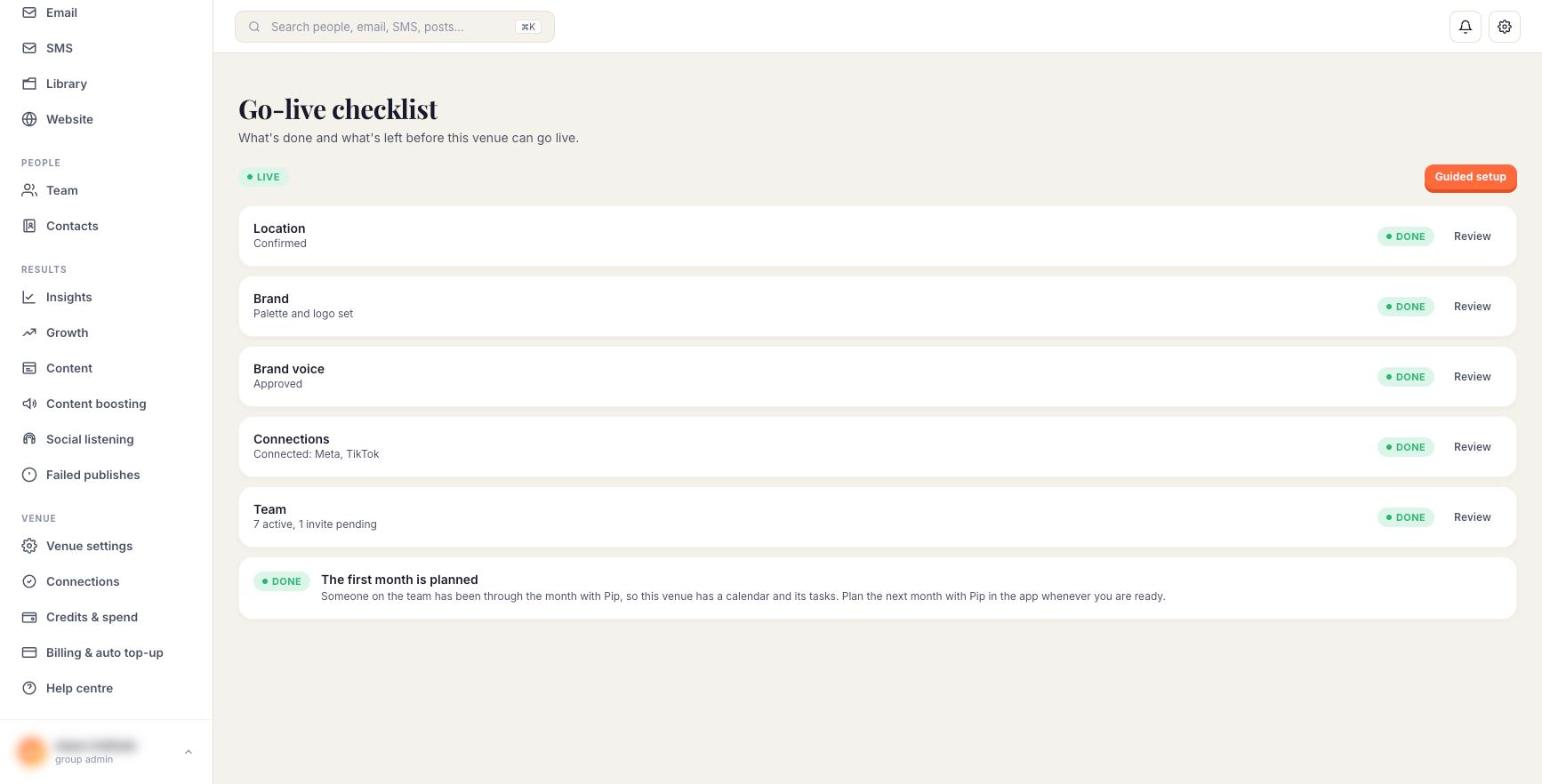
When you open a venue in HQ, the menu down the left side groups everything you can do for that venue. The groups run in the order most people work through a week.
Today: Dashboard and Chat. Start here each day to see what needs doing and talk to your team.
Plan: Plan & tasks, Events and Content requests. Plan the month, add key dates and ask staff for photos or videos.
Create: Social, Email, SMS, Library and Website. Make and send posts, emails and texts, and manage your photos and website.
People: Team and Contacts. Manage your staff and your customer lists.
Results: Insights, Growth, Content, Content boosting, Social listening and Failed publishes. See how the venue is doing and fix anything that did not post.
Venue: Venue settings, Connections, Credits & spend and Billing & auto top-up. Change the venue's details, social accounts and money.
Help centre sits at the bottom of the menu, and your name and role are shown underneath it.
Switching venue
At the top of the menu you can see which venue you are in, with its address and group. Use the Switch venue menu to jump to another venue. Select All venues to go back to your estate overview, or Add venue to set up a new one.
Searching
The search bar at the top of every page finds people, emails, texts and posts. Select it, or press Cmd and K together on a Mac (Ctrl and K on Windows), then start typing.
Notifications and settings
The bell at the top right shows your notifications. The cog next to it opens your settings.