
Your team and venues
Read a venue's dashboard in HQ
The venue dashboard shows this week's score, tasks, credits, team activity and Pip's tip on one page.
Opening the dashboard
Select Dashboard under Today in the venue menu. It gives you the venue at a glance for the current week.
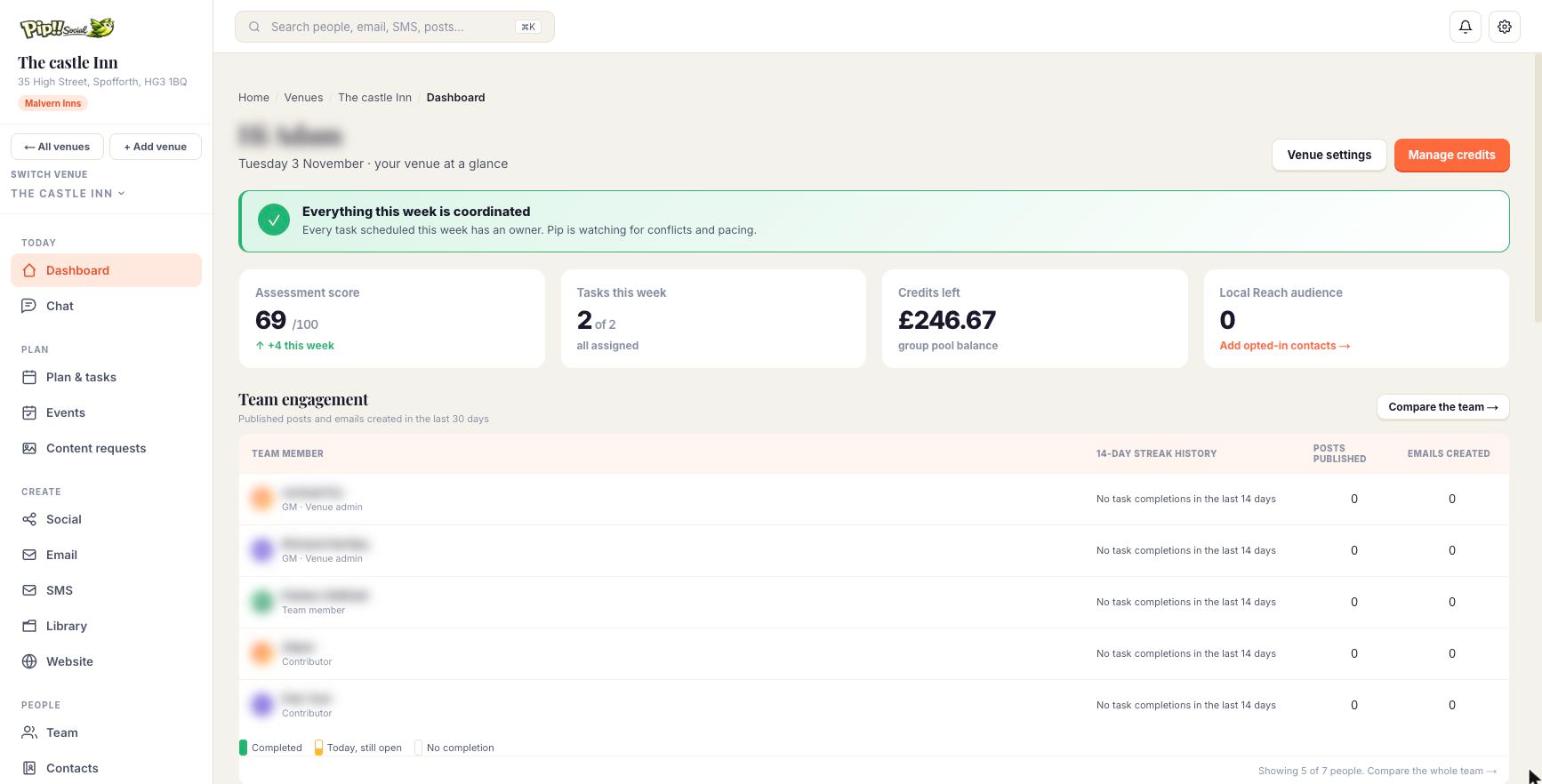
The banner
The coloured banner at the top tells you whether this week is under control. Green means every task scheduled this week has an owner, and Pip is watching for clashes and for too many posts at once. If something needs attention, the banner says what.
The four numbers
Assessment score: how well the venue's marketing is doing, out of 100, with the change since last week.
Tasks this week: how many of this week's tasks are assigned to someone.
Credits left: the money left in your group's shared credit pool, used for things like texts and boosts.
Local Reach audience: how many contacts have agreed to hear from the venue. Select Add opted-in contacts to grow it.
Team engagement
This table shows each team member, their 14-day streak of completed tasks, and how many posts and emails they have made in the last 30 days. Select Compare the team to see everyone side by side.
Further down the page
This week at a glance: your tasks for the week and how many are done. Select View all to open Plan and tasks.
Channel pacing: a preview of what is queued on each channel, so you do not post too much in one place.
Right now: who on the team has been active recently. Select Invite a colleague to add someone.
Today's activity: what Pip and the team have done, such as drafts checked and posts published.
Pip's tip today: one short suggestion for what to do next.
Quick buttons
Use Venue settings at the top right to change the venue's details, or Manage credits to see and top up credits.