Video and reels
Advanced video editing: effects, captions and transitions
Use platform previews, captions, particle effects and scene transitions to polish your reel. Follow the screenshots to find each control.
Advanced video editing
Use effects to give your footage a consistent finish, captions to make speech readable, and transitions to control the joins between shots.
Watch the video guide
Start with an existing reel
Open the reel in the video editor. Select the shot you want to change in the filmstrip. Tap the star-shaped Effects button for Style, Look, Overlays, Camera and Transition. Effects apply to the selected scene; text and object animations have their own layer controls.

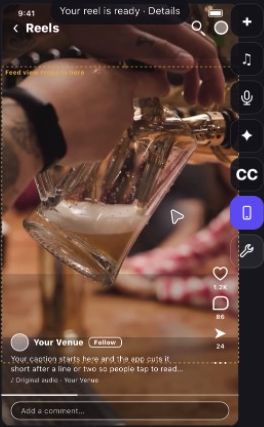
Check your layout with platform Preview
Tap Preview, then choose Facebook, Instagram or TikTok. The editor places a representative platform interface over your picture. Keep titles, faces and important details away from the action rail, caption area and other controls. Move your text or objects until they are clear. Choose Off to hide the guide.

The platform interface is a viewing aid. It is not included in your exported video and it does not post anything. The guide represents a typical platform layout, rather than every possible viewer's screen.
Put spoken words on screen with CC
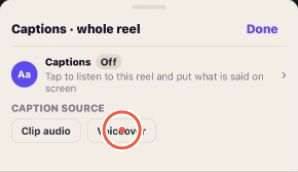
1. Tap CC to open Captions.

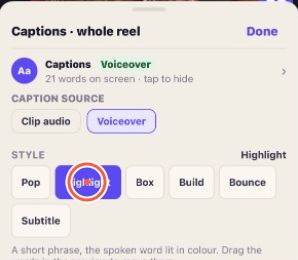
2. Switch Captions on. Pip listens to the reel and puts the spoken words on screen. 3. If the reel has a voiceover, choose Voiceover under Caption source to use that track. Choose Clip audio for the footage's speech. 4. Choose a caption style and drag the words in the preview to a readable position. 5. Read the captions and check their timing against the speech. For voiceover corrections, edit the transcript in Voiceover and tap Save transcript.
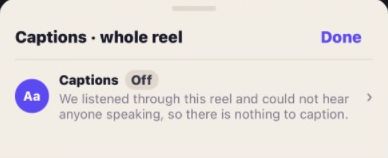
Switch captions off to hide them. Enabled captions are included in the exported picture. Allow processing to finish before judging the result; if listening fails, follow the message and try again.
Add atmosphere with particles
1. Select the scene, then open Effects > Overlays.
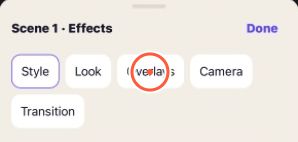
2. Tap + Particle preset and choose a preset. If one is already present, tap Change particle preset.
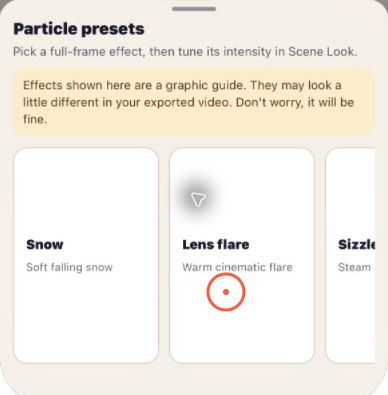
3. Adjust Particle intensity for a stronger or subtler result. 4. Adjust Particle duration to control how long it runs in the selected scene.
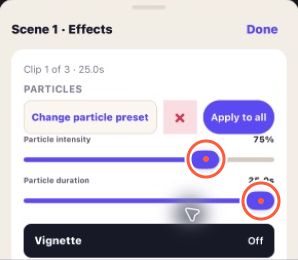
5. Play the scene and check the effect leaves faces, food and text clear.
Use Apply to all only if you want the effect throughout the reel. Confirm the change when prompted. Remove particle overlay removes it from the selected scene. Particles are scene-wide effects, rather than objects you drag around the canvas.
Change the join between scenes
Select the shot that the transition should lead into, then open Effects > Transition and choose a style. A transition belongs to the incoming shot, so the first shot has no incoming transition. A one-shot reel needs another shot before a transition can be used.
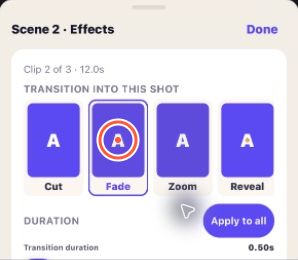
Adjust Transition duration, then play through the join. A longer duration makes the change more gradual. The maximum is limited by the lengths of the two shots; very short shots may only allow a cut. Lengthen the shots if the editor says there is not enough room. Use Apply to all to repeat the transition and duration across eligible joins.
Review and save
Play the whole reel, check captions, and turn on the intended platform preview. Use Undo or Redo to compare changes.

Go back to save the draft. For export, Pip check and posting, follow Your first video post.
Caption example
Choose Voiceover as the caption source, then select a style and check the words over your footage.