
Video and reels
Animate text and objects in your video
Add entrances, exits, repeated movement and scrolling text. Use the illustrated steps to position and time each layer.
Animate text and objects
Animate an individual title, offer, logo, shape or sticker to draw attention to the right detail. Scene transitions and particles are separate controls under Effects.
Watch the video guide
Select the correct layer
Open the reel and choose a scene. Add or select the text or object in the preview and open its editing controls. The layer inspector has Style, Animate, Timing and Arrange.
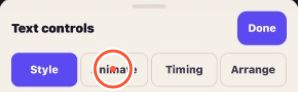
Use Style for appearance. Use Arrange for horizontal and vertical position, size, rotation and opacity.
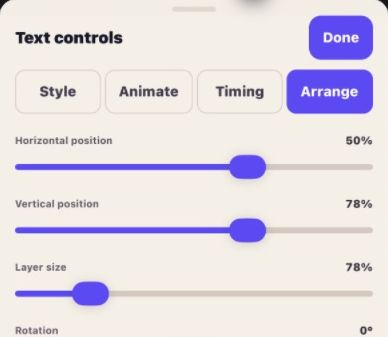
Select the correct layer before changing its animation.
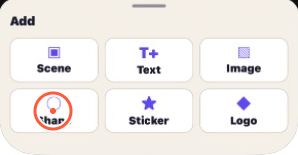
Tap Add, then choose Shape or Sticker to insert an object into the selected scene.
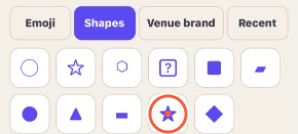
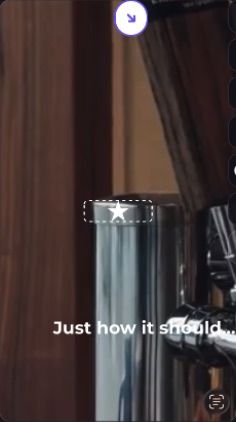
Choose the item you want. This example uses a star.
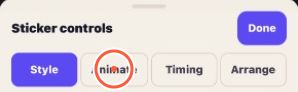
Select the new object, then tap Animate in its controls.
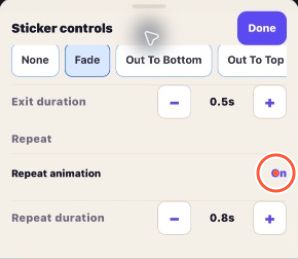
Switch Repeat animation on and adjust Repeat duration to make the star pulse.
Play the scene and check the object against the footage.
Add an entrance
Open Animate and choose an Entrance. Available choices include in from bottom, in from top, in from left, in from right, fade, pop, nudge up, nudge in, badge snap and pulse. Choose none for no entrance effect.
Adjust Entrance duration to change how quickly it arrives.
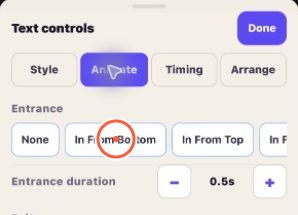
Play from before the layer's start time to see the whole movement.
Example: use in from bottom for a pub offer heading. Compare it with fade for a quieter reveal or pop for a sharper arrival.
Add an exit
Choose an Exit: fade, out to bottom, out to top, out to left or out to right. Choose none if you want no exit effect. Adjust Exit duration and play through the end of the layer.
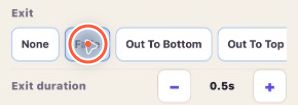
Example: fade the heading away before the next shot. Give viewers enough time to read it between entrance and exit.
If an animation cannot fit, extend the layer's visible time in Timing or shorten the animation durations. The editor limits choices to the space available.
Repeat a movement
Switch Repeat animation on for a repeated pulse. Repeat duration sets the rhythm. Switch it off to stop the repeat.
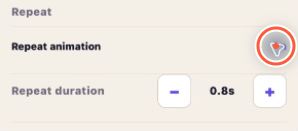
Example: gently pulse a star object while the offer is visible. Compare the still and pulsing versions; keep the text readable and avoid competing movement.
Scroll a text layer
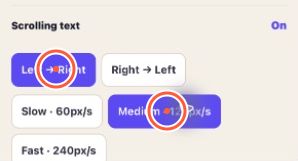
For a text layer, Animate also includes Scrolling text. Switch it on, choose Left to right or Right to left, then select Slow, Medium or Fast, or adjust Scroll speed. Choose a speed that leaves enough time to read your words. Switch it off for stationary text.
Choose when the layer appears
Open Timing. Set Layer start and Layer end within the selected scene, or tap Whole scene. The inspector shows the visible start and end times. Entrance and exit effects must fit within that window.
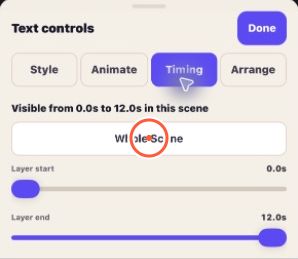
Example: let the opening footage settle, then bring in the offer. End the layer before the scene finishes so the exit completes cleanly.
Review on a phone
Tap Done and play the scene from its beginning. Play the whole reel to check every animated layer. Turn on platform Preview to ensure text and objects stay clear of social buttons and caption areas. Use Undo if a change does not work, and go back to save your draft.