
Video and reels
Ask Pip to change a Studio reel
Make one clear request, inspect the result and undo it if needed.
Open a Studio-built reel
Open the completed project in the video editor. The Pip shortcut is available for a reel marked as a Studio build. It is not promised for every older project or manually built reel.
Ask for one change
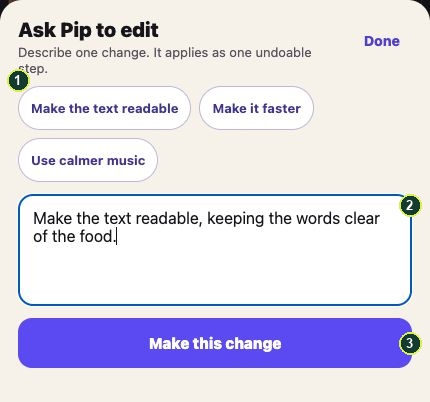
Choose Pip to open Ask Pip to edit. Describe one focused change, such as “Make the text readable”, “Make it faster” or “Use calmer music”. The quick requests submit that request. For your own wording, type it into Tell Pip what to change, then choose Make this change.
In the picture, marker 1 identifies the quick requests: tapping one sends that request. For your own wording, enter one clear change at marker 2, then choose Make this change at marker 3.
Review what changed
Wait for the result and read Pip’s response. Play the affected scenes and then the full reel. A message that the request is being processed is not proof that an edit has been applied. If the request cannot be completed, read the error and keep your existing work.
Undo when necessary
The edit applies as one undoable step. Open Tools and use Undo if the result does not suit the video. Re-check scene timing, captions, framing and sound after changing the reel.
Export a new finished version
When you are happy, save and export again. An already exported file does not change because you edited its project. Inspect the new export before using it in a post.