
Video and reels
Create and add music to a video
Give Pip a clear musical brief and balance the result against speech.
Watch the walkthrough
Follow the music note in the video editor, shape your track with Pip and balance it against speech. The steps below explain each choice.
Open Music in the video editor
Choose a library track, available stock track or Create with Pip. Preview a track before selecting Use.
Describe the feeling, scene or energy in this first step. Then select Shape the sound to continue shaping the track.
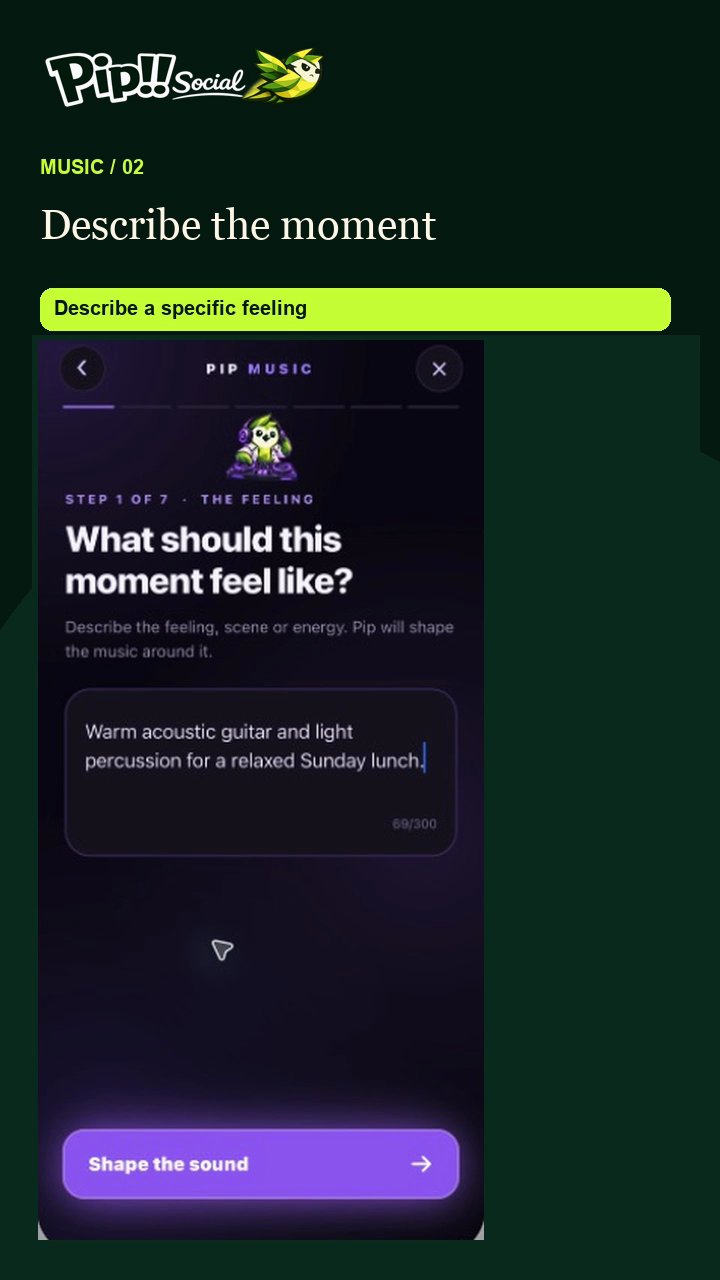
Describe the feeling
For new music, describe the occasion, mood and instruments. For example: “Warm acoustic guitar and light percussion for a relaxed Sunday lunch. Gentle enough to sit under spoken words.”
Shape the journey
Choose the direction, beginning, movement and ending. Quiet with Stay close and Resolve suits a calm story; a busier reel may need a different combination. Choose deliberately rather than asking for “something good”.
Choose the voice and length
Choose Instrumental for music without sung words, or Lead vocal if that fits. Review the brief and pick the offered 15s, 30s or 60s target. Read the cost confirmation before Create my music. A target is not a guarantee of an exact duration.
Preview and mix
Listen to the result and use it in the reel when suitable. Adjust Music volume so speech remains clear. Remove music bed restores the clips' own sound instead of keeping the music layer.
Recover the original request
If creation takes longer or the app offers recovery, return to the saved request. Check its state before starting another paid creation.