
Video and reels
Manage voiceovers in your video
Record or upload a voiceover, balance the sound and correct captions. Follow the cropped screenshots to find each control.
Managing voiceovers
A voiceover is a separate speech track across your reel. Use it to explain your footage, introduce an offer or guide viewers through a story.
Watch the video guide
Open Voiceover
Open your reel and tap the Voiceover microphone shortcut. The recording panel shows the current position, reel duration and microphone level meter.
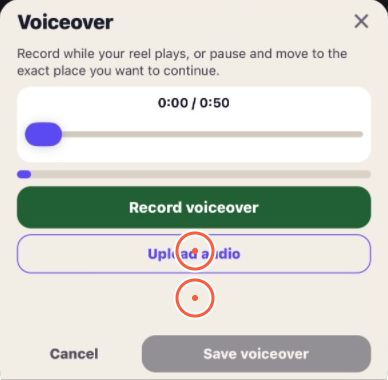
Record in parts
With headphones connected, Play the video in my headphones lets you hear the reel while recording. Choose a quiet place and watch the live microphone level. Do not let background noise overwhelm your voice.
Example: record a welcome over the first venue shot, pause, then add a line about the Sunday roast as the food appears. The gap between the parts lets the footage breathe.
Upload a recording
Tap Upload audio and choose an M4A, MP3, WAV or AAC recording in the file picker.
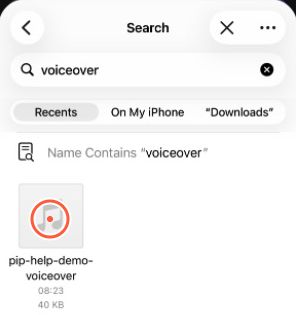
An uploaded file starts at the beginning of the reel, even if the playhead is elsewhere. Check its displayed duration, then tap Save voiceover. Wait for the file to become available before saving. Follow any retry message if upload or saving fails.
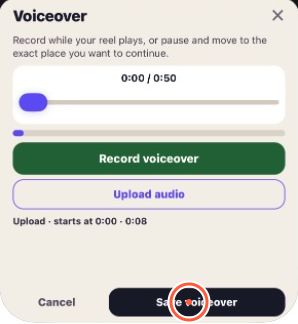
Reopen Voiceover to check the saved part is attached.
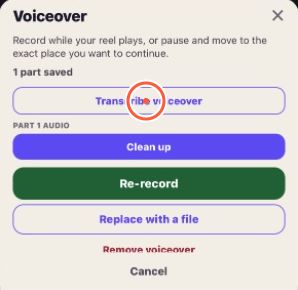
Replace or remove a saved voiceover
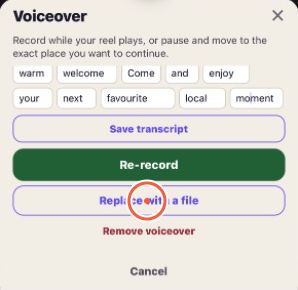
Open Voiceover again. Re-record starts a replacement take. Replace with a file uses another recording. Remove voiceover removes the speech track, leaving the scene footage. Close or cancel if you do not want to keep unsaved changes, and follow any discard confirmation.
Balance voice, original sound and music
Tap Balance, the sliders shortcut between Music and Voiceover.

Adjust Voiceover volume. Mute sets it to zero, while Restore returns it to the previous level.

When music is attached, adjust Music volume below. Mute silences it; Restore returns music to 50%. Keep music underneath clear speech.
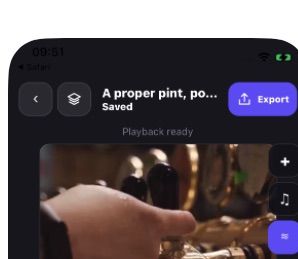
Tap Music bed to open Music. Original sound volume controls the selected scene. Tap Done, play the reel and listen to the balance.
Correct the transcript and add captions
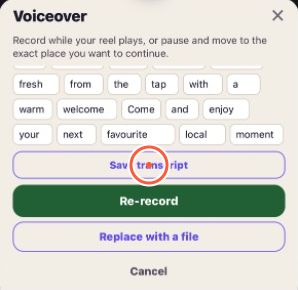
Tap Transcribe voiceover if the saved part has no transcript. Edit the individual words to correct names or spelling.
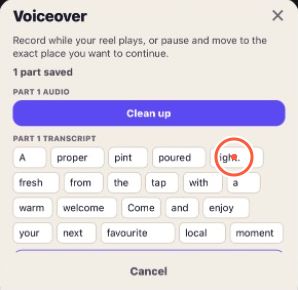
Tap Save transcript. This corrects the written caption words, rather than changing the speech recording.
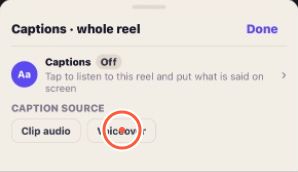
Tap CC and choose Voiceover as the caption source. Words on screen in audio also opens these settings.
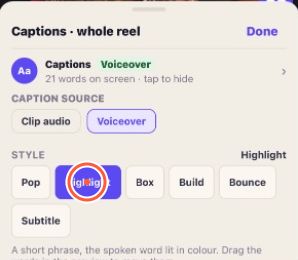
Choose a caption style and move the words away from important picture details.
Play the reel. Read the captions and check their timing against the speech.

Clean up a recording
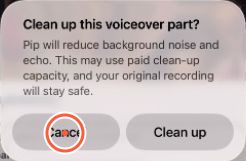
Clean up is a paid option. Read the confirmation before running it. When it finishes, compare Before and After and select your preferred version. Undo clean up selects the original again. Your original stays available if processing fails.
Final check
Play the entire reel. Listen for gaps, clear speech and balanced sound. Confirm each part starts with the right picture. Recheck after changing scene lengths or order, then go back to save the draft.