
Video and reels
Make a reel with Pip’s Video Studio
Give Pip real photos, clips and a clear brief, approve the plan, then refine the editable reel.
Open the Studio
Open My Videos and start a new video. Pip’s AI Video Studio is the guided build route. It is still being developed, so available voices and completion options may differ while work is released. Your venue access determines whether you can use it.
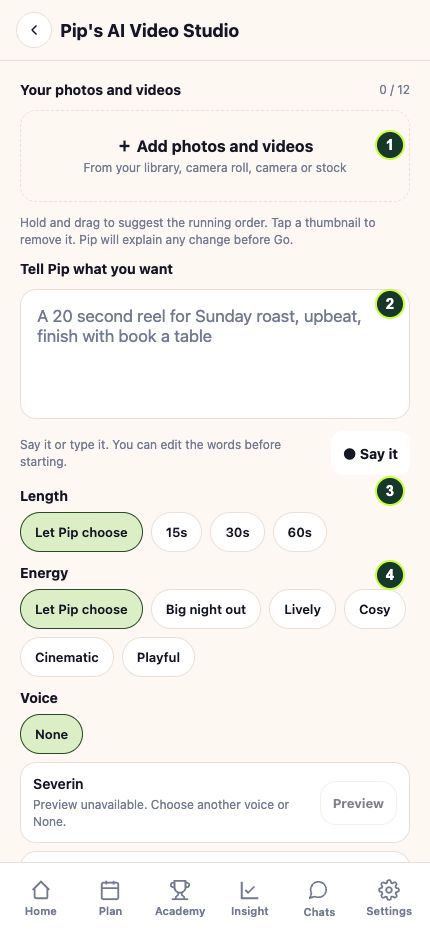
Use the numbered controls below: 1 adds photos and clips, 2 is your brief, 3 sets the length, and 4 chooses the energy.
Add the real material
Choose Add photos and videos. Select suitable items from the Library or another offered source. The Studio supports up to 12 photos and videos. Check the selected count and thumbnails. Hold and drag to suggest an order, or use the earlier and later controls. Tap a selected thumbnail to remove that item from the brief.
Give Pip a useful brief
In Tell Pip what you want, describe the audience, the real occasion, the desired feeling and the final action. For example: “Make a 30-second Sunday lunch reel from these photos. Keep it warm and welcoming, show the roast clearly, and finish with Book a table. Do not invent a price or offer.” Say it can turn a recorded idea into editable words when microphone access is available. Check the transcription before continuing.
Choose length, energy and voice
Leave Length on Let Pip choose or select 15s, 30s or 60s. Energy offers Big night out, Lively, Cosy, Cinematic and Playful. Choose the mood that suits the footage. Preview a voice when a sample is available, then select the voice itself. None creates a reel without a voiceover. Do not assume a failed preview means a selection was saved. Captions are automatic when there is speech.
Review the plan before Go
Make my video starts preparation. Read Here is the plan: its opening hook, story, call to action, scene durations and any explanation for a changed order. Choose Change the plan to revise your brief. Choose Go only when the proposal is right. Preparing or approving a build is separate from publishing a social post.
Return to the same build
Progress tells you what Pip is doing. You can leave the screen and return through My Videos. If progress cannot be checked, use Check progress again. If work fails, read the message and use the existing Try again recovery rather than starting another copy of the same video.
Finish in the editor
A completed Studio build opens an editable project. Watch the whole reel, inspect its words, framing, captions and sound, and make the changes you need. On a Studio-built reel, Pip can also apply a focused edit from Ask Pip to edit. Export creates the finished video. Post this reel opens the separate Social flow, where you choose destinations, check the post and deliberately publish or schedule it.