
Your monthly plan
Request content from your team
Invite contributors, prepare a clear shot brief and track the response.
Make sure the team can help
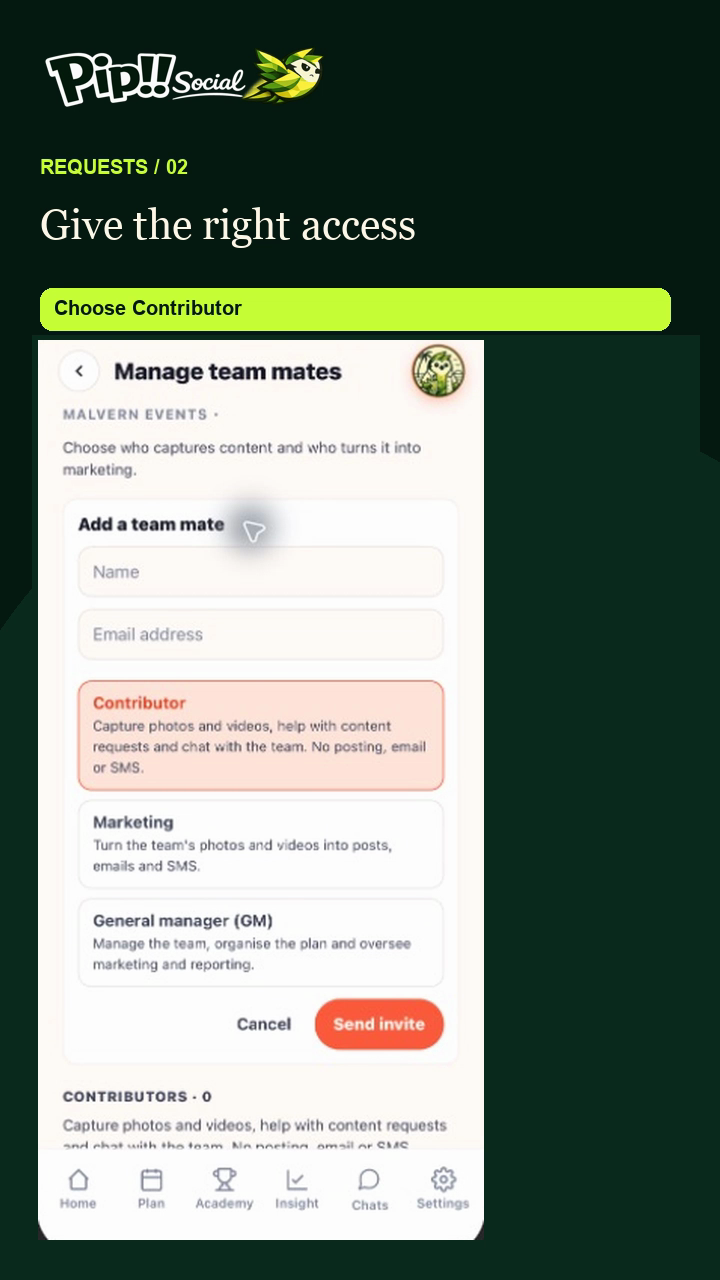
Open Settings → Your team → Manage team mates. Invite your bar, kitchen and floor staff as Contributors. They capture photos and videos without sending campaigns themselves.
Choose Contributor when inviting staff to capture content. That role can fulfil requests and chat, but cannot post campaigns or send email or SMS.
Start the request
Open a content request from the plan or activity. Check whether content is already being requested before creating another request for the same work.
Describe the result
Review What is it for?, Capture brief, Photos or video and Shot list. Tell the team what to show, the angle or moment that matters, and what to avoid. Edit Pip's prepared brief before sharing it.
Set people and timing
Choose Useful by. Open People and linked activities to choose Everyone at this venue or Choose people, the reviewer, and any linked activity. The request deadline does not change the activity date.
Share or save
Request content opens the request for the team. Save draft keeps preparation separate from asking the team to act. Check the result rather than assuming a draft has notified people.
Use the example as a guide
Contributors can open each shot's instructions and example image. A still example can guide a video shot too; it is not finished footage. If an example is unavailable, the written brief still explains the task.
Track and complete
Contributors capture or upload against the requested shot and check that it saved to the request. Review outstanding work and assign the missing shots to a specific person when needed.